ACA Lunchtime Trusted Servant Training Session
for FWT Lunchtime meetings
It is important that we have trained trusted servants to help us run our meetings safely and smoothly. This training guide is meant to be a guide for our trusted servants to help them feel more comfortable in their role and to help keep our meetings safe. Also, since our Zoom account is shared with other ACA meetings, it is important that each meeting leave this space available for others to use.
Claim Host
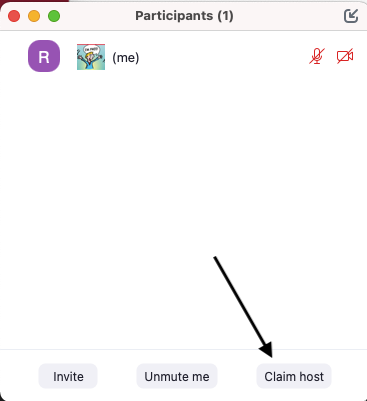
After you claim Host, the menu bar at the bottom will have an additional button and the Participants window and Chat window will change.

- Host Tools Button - used to adjust meeting settings
- Participants Window - used to create co-hosts and otherwise manage participants
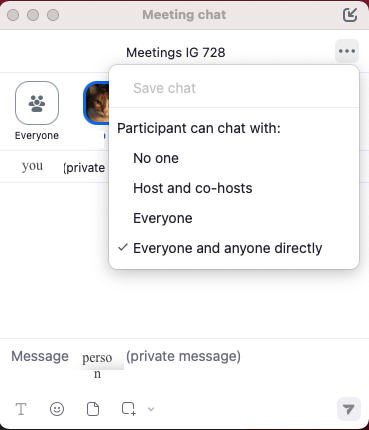
- Chat Window - used to control who participants can chat with
Create co-host
you can create co-hosts in the Participants window:
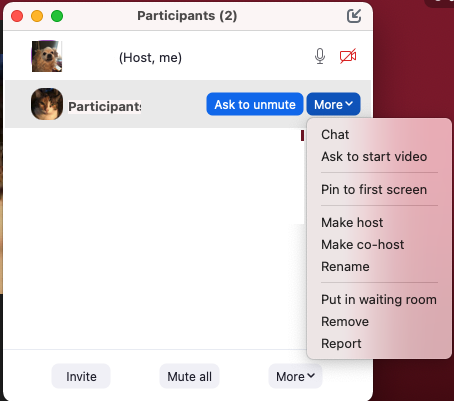
In the Participants screen you can also make someone else the Host. This is helpful if you need to leave early ... be sure to pass host role to someone that is trained. If you leave without passing the host role the meeting may end abruptly! Whoever is the host... when ending the meeting please click END MEETING FOR ALL. If you need to leave early be sure to pass host role to someone that is trained. If you leave without passing the host role the meeting will end abruptly.
Host/Cohost's Role:
- Keeping the mics muted if people are unmuted by accident when someone else is sharing.
- Admit people from the waiting room as needed.
- Communicate in chat with FTs if they have any questions and/or concerns about the meeting.
- Post the announcements in the chat box if you can.
- Limit the chat to "Host and co-hosts" when sharing starts and open chat to "Everyone" when sharing has finished.
- Watch out for disruptors and mute, remove and/or report them when needed.
- Let the other host back into the meeting if they drop off for some reason.
Adjust meeting settings
When you are Host or Co-host you will have an additional button on your screen - the 'Host tools' button. Before the meeting begins please use this button to change the settings as shown below. Please note that the settings may be different on video-on days vs video-off days. Please adjust the settings accordingly. If you are not sure if it is a video-on day or a video-off day please ask the other host or check the calendar.
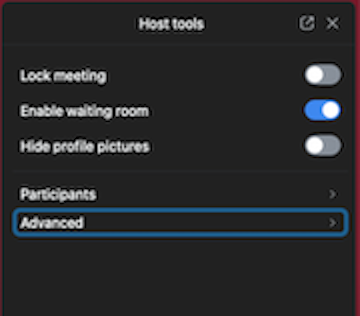
Video off days:
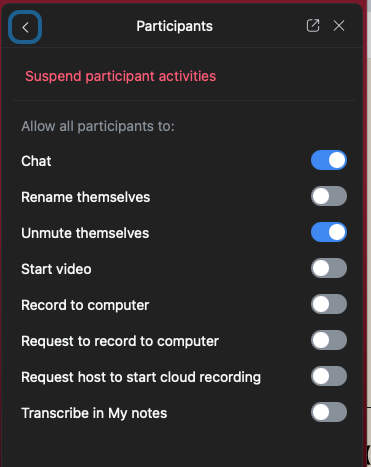
Video opt days:
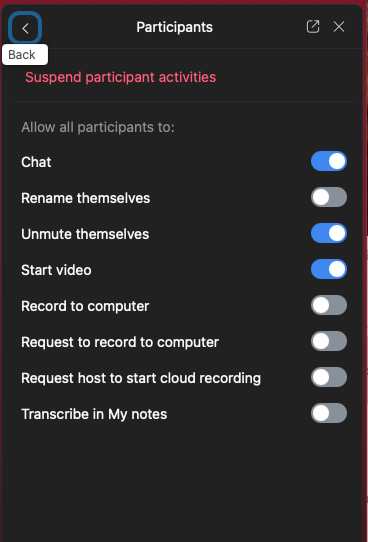
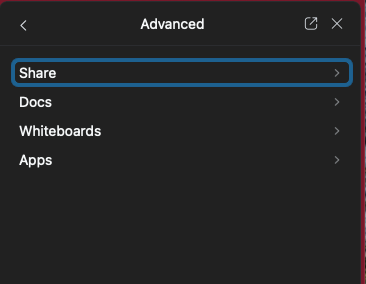
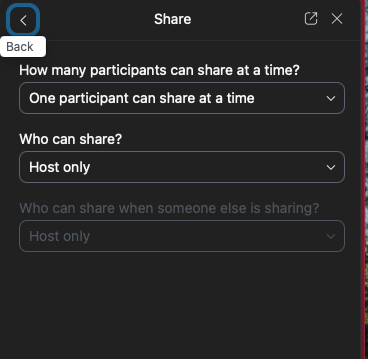

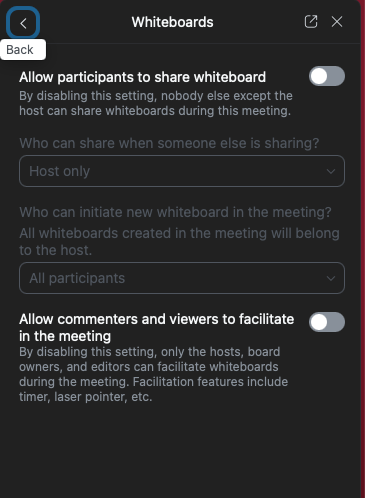
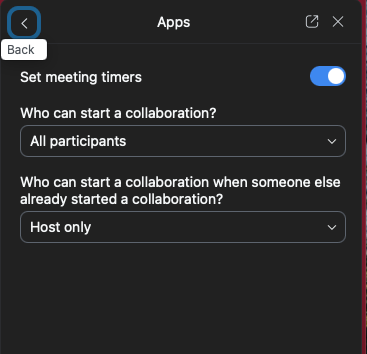
Participants window
The Participants screen is where you can see who is in the meeting, and as Host or Co-host you have additional priviledges. You can see who is in the waiting room, and who is muted or unmuted. You can also mute or unmute people from this screen as well as remove them or put them in the waiting room. You can also rename people from this screen if they ask you to do so or if they come in with a phone number. You can also make someone a cohost from this screen as well as see who the host and cohosts are. If you hover over the right hand side of their name you will see more options.
Please do not let in anyone that looks like it might be ai. Example: the name reads aitakingnotes.
Chat window
The Chat window is where you can communicate with everyone in the meeting or privately with someone. You can also change who can chat in the meeting from "Everyone" to "host and cohost" to "No one". You can also save the chat if you want to keep a record of it. If you click the 3 dots in the upper right hand corner of the chat window you will see more options.
Pointers/Ideas:
Mute people - This can be done in the Participants screen or in the right hand corner of their profile square. There is less of a chance of muting whoever is sharing if you mute from the corner of their profile box
Removal of disruptive people - This can be done on the participants screen or in the right corner of the persons profile box. You can choose to put the person in the waiting room or remove them and hit report later. If you decide to put them in the waiting room and you don’t want to let them back in please send a chat to whomever is admitting people with you that day so they are aware. If you click that you would like to report them, you will receive an email that you need to confirm within 24 hours or the case will be dropped.
Please note that if you remove the person to the waiting room and don’t report them they can come back in with a different name so you might want to keep the meeting locked for the rest of the meeting in that case.
* After you feel it is safe to turn participant activities back on - start with unmuting themselves then progressively enable video if it is a video-on day. Slow is better in case there is still another intruder.
Whoever is the host... when ending the meeting please click END MEETING FOR ALL. If you need to leave early be sure to pass host role to someone that is trained. If you leave without passing the host role the meeting will end abruptly.
Breakout rooms - We do not use breakout rooms in our meetings so please do not create any. If you see that there are breakout rooms created please delete them.
Recording - We do not record our meetings so please do not record the meeting. If you see that the meeting is being recorded please stop the recording.
Spotlight - We do not use spotlight in our meetings so please do not spotlight anyone. If you see that someone is spotlighted please remove the spotlight.
Virtual Backgrounds - Virtual backgrounds are fine to use in our meetings. If you see someone using inappropriate virtual backgrounds you can send them a chat or remove them if needed.
Rename - We do not let people rename themselves for security reasons. So please uncheck that they can rename themselves. (If someone comes in with a phone number you can ask them in chat if it is okay to rename them - it is not required they answer in order to stay in the meeting though. Also if someone asks you to rename them,that can be found on the participants screen if you hover to the right of their name you will see the rename tab.)
Chat - This should be checked at the beginning of the meeting. The script will prompt you to close the chat before sharing time starts. Please change the chat to "hosts and cohosts only" at this time. (This can be found by hitting the chat button-then the top right corner of the box hit the 3 dots and then you can change it.) If you want to chat with someone privately hit the blue box in left hand corner of the chat window then scroll down and find the person you want and click chat.
Thank you for being of service to our meetings!